

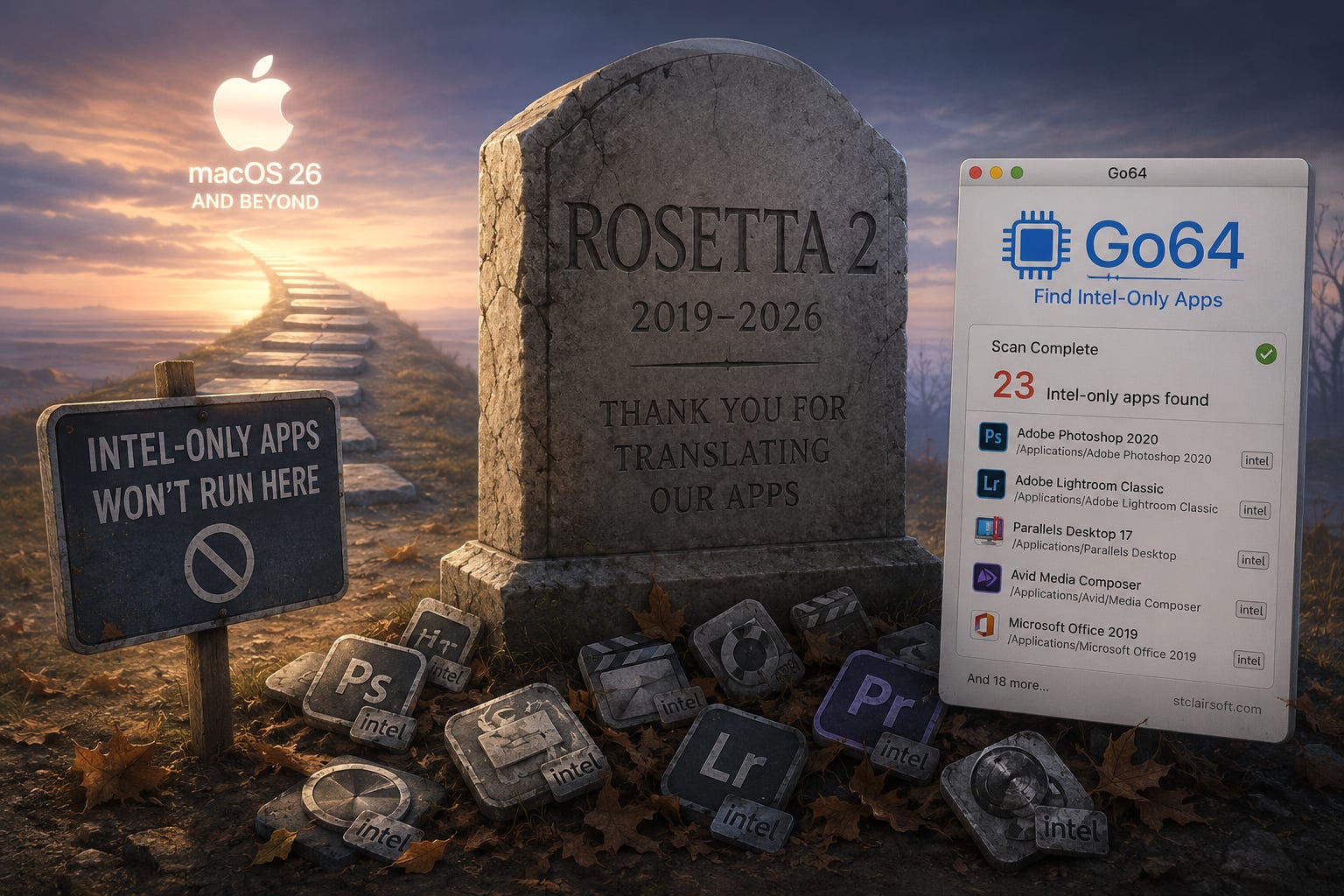
Anyone who has used technology for years, if not decades, is familiar with a “crossing the Rubicon” moment: a tectonic tech shift that changes everything. The phrase “crossing the Rubicon” means “passing the point of no return” and comes from Julius Caesar’s crossing of the Rubicon River in 49 BC with his army. At the time, Caesar was not allowed to lead an army in Italy, so crossing the river was a bold move that, once made, could not be undone.
Apple and Microsoft have historically made incremental updates to their operating systems, macOS and Windows, but every once in a while there’s a major change that affects millions of users. The last seismic upheaval was Apple’s macOS Catalina in 2019, which no longer ran older 32-bit-only apps; Windows followed suit in 2020. Both companies spent several years warning developers that this was coming and urging them to get on board. Most did, but not everyone got the memo, especially shareware apps created and managed by one person. They either lacked the resources to completely rewrite their software or had already been contemplating throwing in the towel, and this was the last straw.
And now, another Rubicon is at hand, at least for Apple users, with the announcement that next month’s official release of macOS 27 “Golden Gate” will be the last to support older Intel-only apps. When macOS 28 is released next year, any remaining Intel-based apps are hasta la vista, baby! And if you still use an Intel-based Mac, Golden Gate itself won’t even install: this particular Rubicon cannot be crossed.
How did we get here?
A quick recap for anyone who’s been tuned out for the past six years: in 2020, Apple said sayonara to Intel and its historically power-hungry processors, which often made the outer case so hot it could cause burns. I’m not kidding: I once had a tower-type Mac that had no less than 19 fans in it! Worse, for laptop users on battery power, Intel processors would often slow down by up to 70 percent.
For years, Apple successfully used its own processors in iPhones; thanks to these “A”-series chips, phones stayed cool without fans, booted quickly, and delivered impressive battery life. After Intel repeatedly failed to provide Apple with a workable roadmap for the future, Apple chose to ditch Intel entirely in favor of its homegrown “M”-series processors, which would be called Apple Silicon. Like the iPhone, these new Macs would have all their parts — RAM, graphics, CPU and more — on a single unified piece of silicon called a System on a Chip, or SOC. The first M1 Macs were extremely popular, and the latest M5 models are exponentially more powerful than their predecessors while staying quiet, cool and energy-efficient.
There’s a saying in tech: “wherever hardware goes, software follows.” In Apple’s case, software needed to be created or rewritten to take advantage of the new M-series chips. As you would expect, Apple was first out of the gate with its own Apple Silicon-native apps, but it also provided a way for people to keep using their older Intel apps by including a system-level “emulation layer” called Rosetta 2. With an initial 10-second download of Rosetta, a cherished app would run just as it used to, with little to no performance difference.
One reason Rosetta 2 is so effective is that Apple has experience with such transitions. Between 2006 and 2008, they transitioned from PowerPC to — you guessed it — Intel processors and created the original Rosetta emulator to ensure a seamless transition for users. As with Rosetta 2, Apple set a clear timeline for how long the transition would last and when support for older applications would conclude.
And now, here we are, about to cross the river again.
How do I find out how many Intel apps I have?
If you use a Mac running macOS 26 “Tahoe,” you no doubt have already seen a warning message like this one:
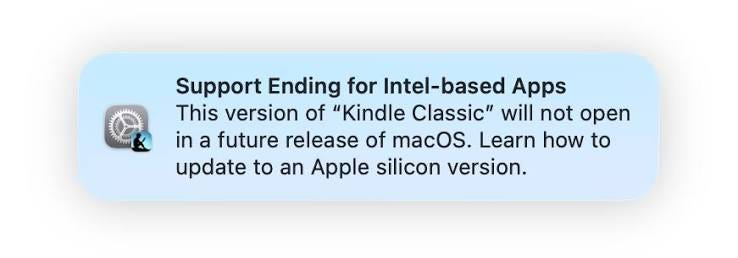
This is Apple’s way of telling you that the app you are launching will work as expected… for now. But in the next version of macOS, it’ll be a goner. As before, hope springs eternal that the software developers of these Intel-only apps will issue an update; as of now, many have. But it’s inevitable that some will slip through the cracks. We’ve got a year to take action, so let’s see what options we have.
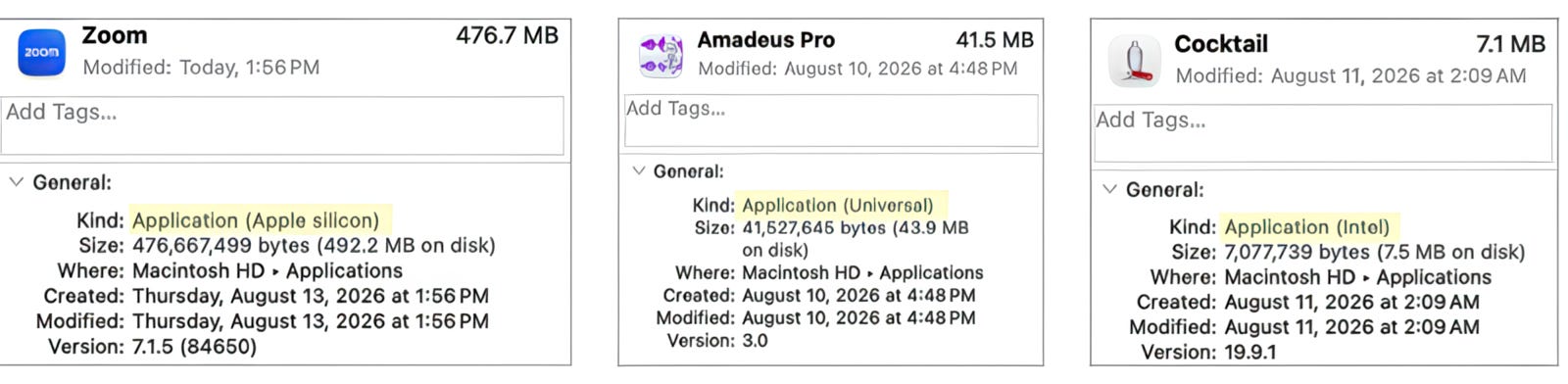
The first step is to figure out what kinds of apps we actually have on our machines. On today’s Macs, you can find three kinds of apps: Apple Silicon-native, “Universal” (meaning it can run on either a current Mac or an older one with an Intel processor), and Intel-only. A simple way to check is to click an app in your Applications folder once to select it, then press Command-I or select “Get Info” from the Finder’s File menu. Here’s a graphic showing the Info Panes of three apps I use: look next to the word “Kind” to see what kind it is. (I’ve highlighted the result to make it easier to see.)
As you might imagine, clicking every single app in your Applications folder is not an effective way of getting the Big Picture. Apple thought of that, too, by providing a tool that tells you exactly how many Intel-only apps you have and what they are. Unfortunately, this feature is only found in macOS 27 “Golden Gate,” which is currently in beta. (Sidenote: I’ve been running macOS 27 on my M5 MacBook Pro, starting with the Developer Beta, which is something I’ve never done before. And I’m happy to report it’s been solid as a rock, with a few rough edges, of course. And it’s worlds better than Tahoe! More on that in another column.) In macOS 27 Golden Gate, if you go to System Settings —> General and then click the Details button next to the listing for “Intel-based Apps”…
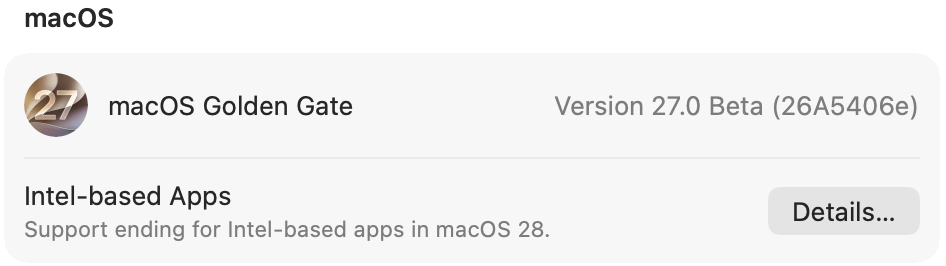
You’ll get a list of any Intel-only apps you may have. A portion of my (very short) list looked like this:
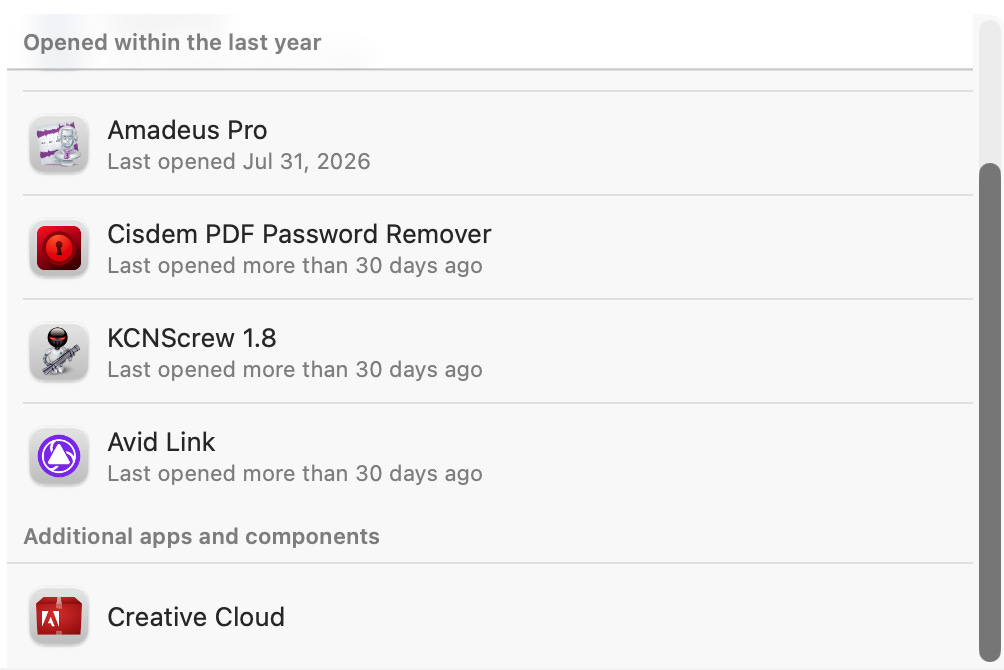
As convenient as this feature is, it’s also bare-bones. Only one of the listings had a ‘visit website’ button…

and it left out an entire category of Intel-based software: plugins. This is a huge omission! For those who use graphic apps like Photoshop, or music apps like Logic Pro, plugins are a way of life. Some of us have favorite plugins going back decades, which definitely complicates things.

Go64 to the rescue!
Back when Apple transitioned to allowing only 64-bit apps to run with the introduction of macOS Catalina, users faced the same problem: figuring out which apps needed updating and which to leave behind. Stepping into the breach was St. Clair Software, makers of one of my all-time favorite apps, Default Folder X, which I’ve mentioned here several times. As a public service, St. Clair released a free app called Go64 that would scan the internal drive and list all the apps, plugins, and more it found, grouped into 32- or 64-bit categories. Neat!
And now, after over a decade, Go64 has returned, this time also listing which apps, plugins, and similar items are Intel-only and which aren’t. And I mean it lists everything, including looking inside apps to find internal components that may be Intel-only, even if the app itself is largely Apple Silicon-native. (I’m looking at you, Adobe Creative Cloud.)
When you first launch the reborn Go64, you’ll see this welcome screen, which spells out exactly what the app will be looking for and why:
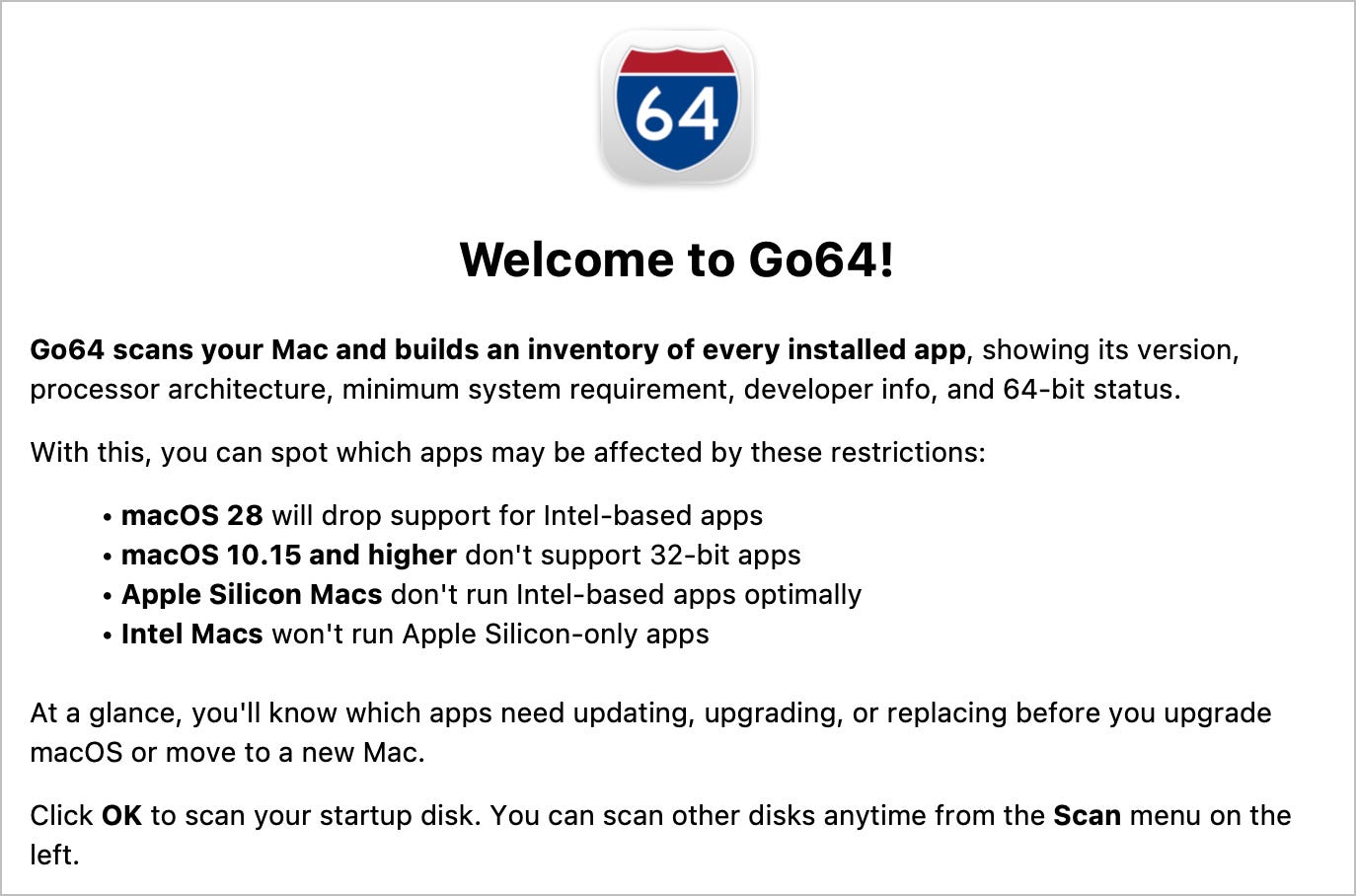
As soon as you clear the Welcome Screen, Go64 starts scanning your drive for everything it can find, then displays the results in an easy-to-read list. There is a drop-down menu where you can filter the results, for example, to show just Intel-only apps. The graphic below shows the results from my M3 Ultra Mac Studio, and… color me surprised: I had no idea I still had so many of these apps installed!
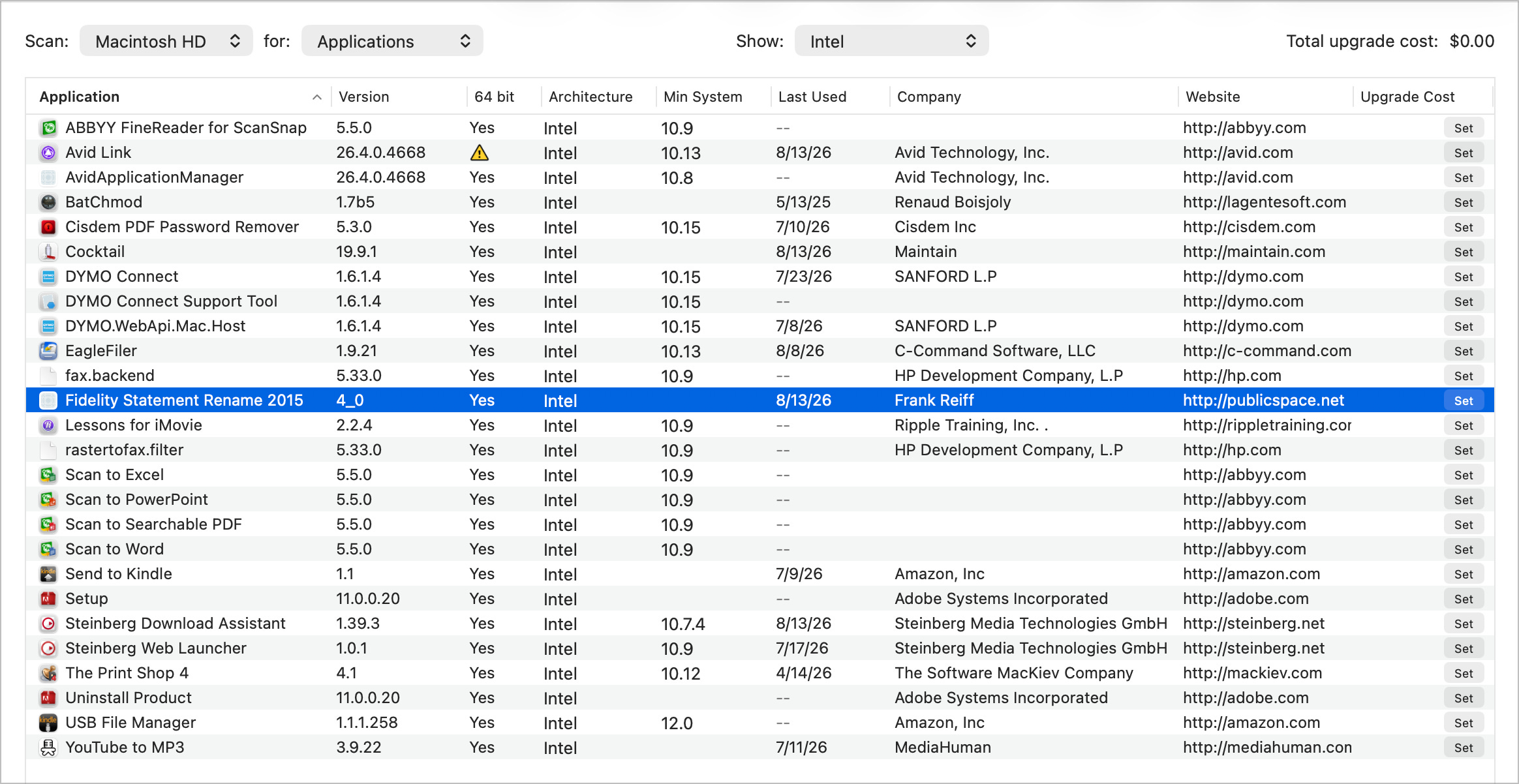
One item caught my eye right away: the Fidelity Statement Rename 2015 app.

It wasn’t really an app; it was a “droplet” I created with “A Better Finder Rename” — an app that’s still being developed and, yes, is Apple Silicon native. I created this droplet to quickly rename PDF statements I downloaded from the Fidelity website. A nice idea in 2015; totally unnecessary in 2026! I’d completely forgotten about it, and now I could delete it.
Another set of apps I could send to the trash was the ABBYY FineReader for ScanSnap set, which included the “Scan to…” variants. In truth, I never used them or needed them. Buh-bye! Go64 lets you control-click an item or set of items to reveal them in the Finder so you can quickly delete them. Or, in my case, drag them into the AppCleaner window. AppCleaner is another free app I’ve used forever that not only deletes apps but also many of the associated files the user can’t see. I also trashed BatChmod, a freeware app that stopped working correctly years ago.
I was surprised to see YouTube to MP3 on the list, as I could have sworn MediaHuman spruced it up last year. Turns out they did, but I had the wrong download link stored in my Safari bookmarks. When I found the right one, this page appeared:

As I tell my clients, whenever you have a choice when downloading apps, if you’ve got an M-series Mac, you always want to click the “Apple Silicon” button. Thanks, Go64!
An app over troubled waters
A few of the other items in the list, however, were more troubling:
Avid Link — Oh dear. This app is used alongside Sibelius, the notation software I use. Sibelius was finally updated to a Universal app in 2025; why on earth haven’t they done the same for Avid Link?!
CISDEM Password Remover — I depend on this app to unlock PDFs of music that I have purchased and downloaded, so I can delete unneeded pages when I have to print them for our choir. Uh-oh… I better reach out to CISDEM pronto.
The Print Shop 4 — I’ve used this app since the early 1990s and still love it. However, it looks like the end is near. Software MacKiev, which currently owns it, hasn’t updated it since it was converted to a 64-bit app many years ago, and they don’t even sell it to the public anymore. Plus, the company name tells you where they are located, so it’s likely they may not even be in business anymore. This one makes me sad on several levels. At the same time, this may finally be the impetus to dive into all that Apple Creator Studio can do, as many of the “easy as pie” features of Print Shop are now available in Pages, Numbers and Keynote.
That’s A Wrap
The impetus to write this article came after I read Jason Snell’s excellent Six Colors article, “Preparing for next year’s Rosetta 2 demise.” Jason goes into more detail on the history of tech upheavals and offers a couple of other alternatives to Go64 for those so inclined. There is also an online database of apps that do or don’t support Apple Silicon; you can quickly type in any app's name to see the results.
When it comes to tech, change is inevitable. The longer you use it, the more you’re exposed to change. However, change doesn’t have to upend your life. Apple has let everyone know they have a year before an actual upheaval begins, and I’m letting everyone know that the time to start dealing with these changes is now, not a year from now.
Your friendly neighborhood Tech Daddy
Tech Daddy Substack Founding Members
Leigh Adams
Edgar Johnson
Harvey Rosenfield
Phil Evans
Many of you have asked if there is a GoFundMe campaign to help us recover from the devastating loss of our home and possessions in the Eaton Fire. The answer is yes! Our dear friend Jenn Melyan has created a GoFundMe for us, which you can access here.