
Powerhouse Mouse Master
Logitech’s MX Master 4 Raises The Bar — Again

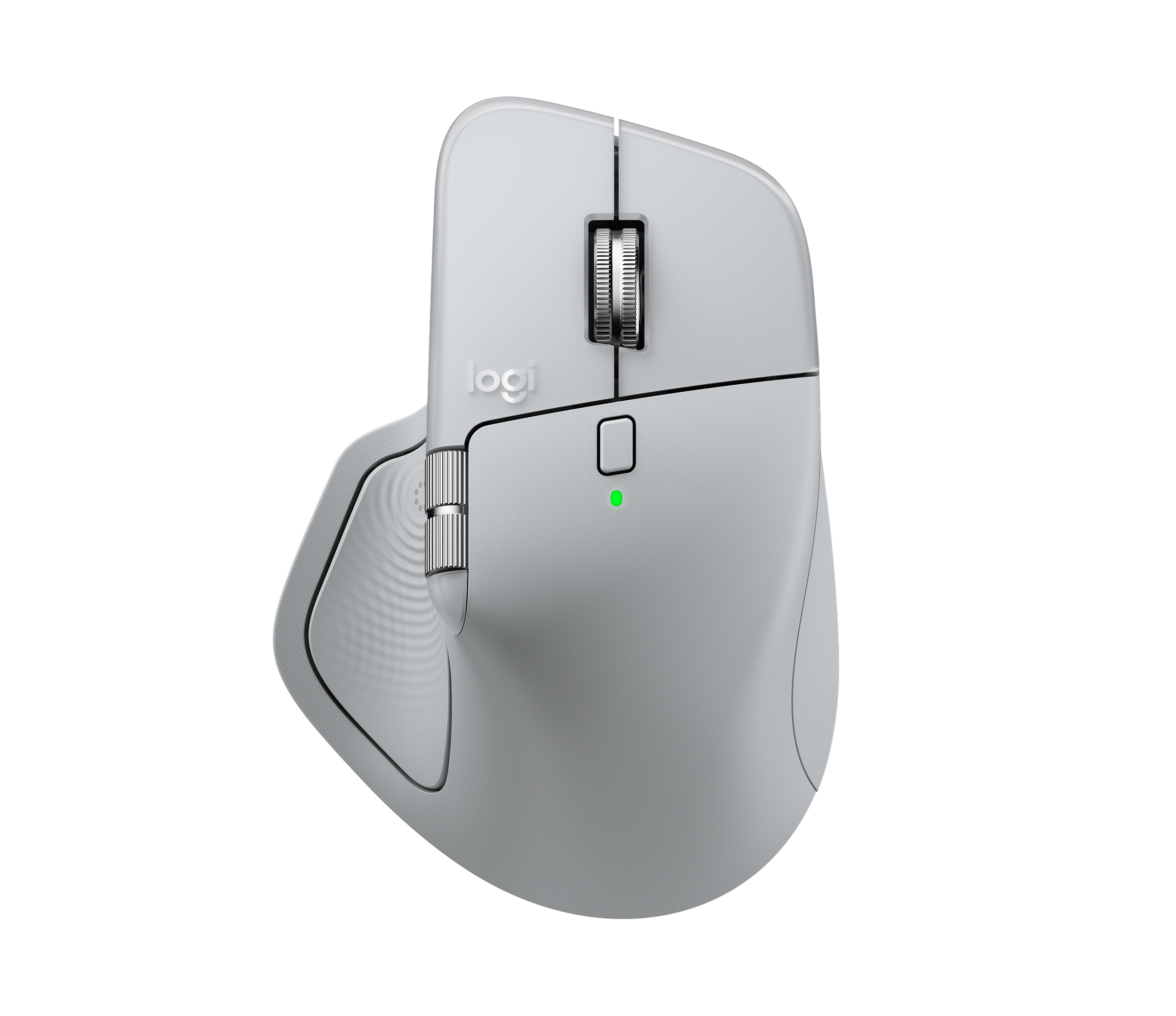
As a longtime user of All Things Apple, I have always used the mouse that comes with Apple desktops. Various versions of the Apple Mouse have always had a single button because Steve Jobs famously disliked the two-button models that all PCs used. He considered them a design failure and believed that a well-designed user interface should allow everything to be done with just one button. This approach was in line with the original Macintosh’s emphasis on simplicity.
Jobs eventually embraced the idea of a multi-button mouse after seeing how capacitive sensors could mimic buttons without needing physical ones… and the Mighty Mouse was born. To this day, many Mac users aren’t aware that you can turn the flat surface of the Mighty Mouse, or any Apple trackpad, into a two-button device by enabling that feature in System Settings —> Mouse / Trackpad. The feature is called “secondary click,” also known as “right click” or “control-click.”
Over the past few months, I’ve seen glowing reviews from various pundits I respect about Logitech’s latest version of their MX Master series mouse, which has been around since April 2015. The MX Master 4 now includes “haptic feedback” along with many other features, so I decided to try it myself. And… I love it! Within a week, it’s become one of those “how did I ever live without this?” kinds of things. I’ll tell you more about it right after I catch you up on the latest Tech News.
OS 26.1 Is Ready To Run
For Apple users with any device running the latest “26” operating system, Apple released important updates on November 3. This page has the details. If you have already installed iOS 26, iPadOS or macOS 26 on a device, you should always update to the latest version, as it often fixes many bugs and includes crucial security updates. For those who haven’t upgraded to 26 yet, I recommend waiting until at least v2 is released, probably around mid-December.
Taking A Pass On Liquid Glass
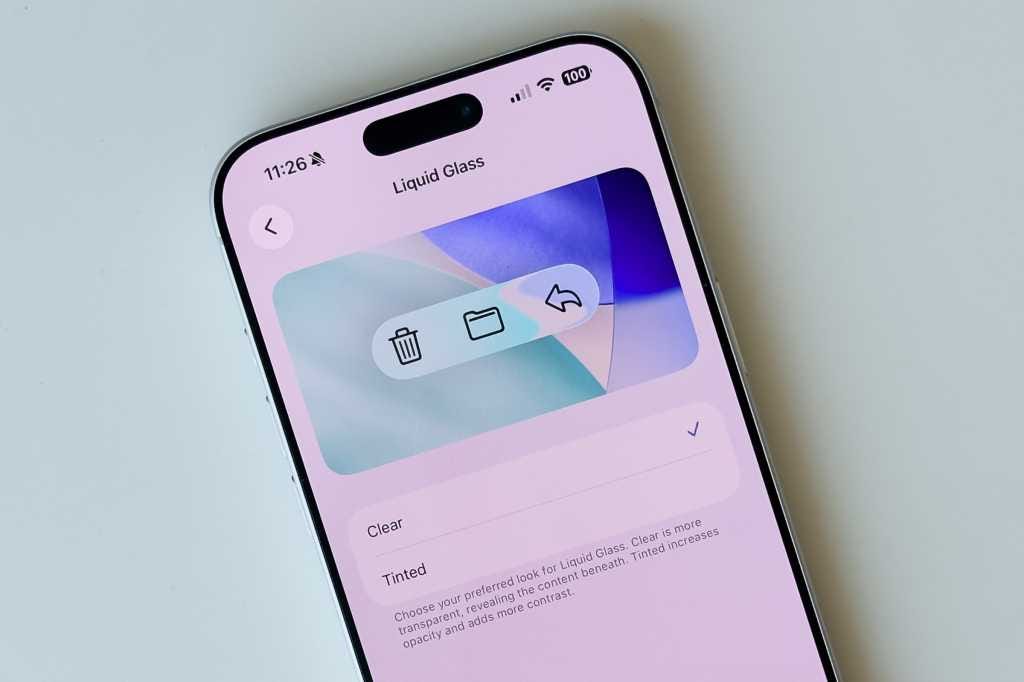
One of the features in the latest 26.1 updates is the ability to “tone down” the Liquid Glass effect Apple rolled out back in September. MacWorld magazine claimed in this article that the addition of the “Clear / Tinted” toggle in the newly-created Liquid Glass settings pane signified that Liquid Glass is ‘dead.’ I disagree. Liquid Glass is here to stay… for the foreseeable future, anyway. For those of us who’ve been around for a while, we remember that Apple has done this before: introduced a radical new visual approach, then started dialing it back in various updates, and that’s what is happening here.
I’ll admit that Liquid Glass takes some getting used to, and it is sometimes a pleasing visual element, while at other times it can be distracting, depending on the device and the software involved. In my opinion, giving users more choices about how something looks is always a good idea. Apple has made the right decision here. Will there be a future option to turn Liquid Glass off completely? Probably not, but I would support that as an option.
The M5 Is Alive
In September, Apple hosted a highly publicized event introducing the iPhone 17 lineup and the new Liquid Glass-based operating systems. Then, on October 15th, Apple released a low-key press statement announcing the new M5 MacBook Pro. The irony is that the more widely promoted September event had some interesting features, but this latest news is astonishing! According to initial testing, including this exhaustive YouTube video,
this new laptop is nearly twice as fast as its predecessor, setting a new record for the fastest speed ever documented for a consumer computer… wow!
Apple has uniquely limited the M5 to only the 14-inch MacBook Pro; it is not available for the 16-inch model, nor are there any of the usual “Pro” or “Max” processor upgrades. Those models are expected in the first quarter of 2026, along with an M5-based MacBook Air.
Gasping For Air
The September Apple Event also unveiled the new iPhone Air, the thinnest iPhone ever made. I wasn’t aware that people had been clamoring for something like this, probably because they weren’t: sales have been so poor that the phone is now considered DOA and work on an updated version has been halted. Similarly, Samsung has abandoned its ultra-thin Galaxy Edge. I’m not sure how these companies came to believe there was a demand for super-thin phones that are both costly and feature-limited, but the message from consumers is now loud and clear: nope!
Master Of The Mouse
OK, back to the Logitech MX Master 4. If you want to try one of these yourself, you need to know that it comes in two versions: a ‘regular’ model for PCs, and the “Logitech MX Master 4 for Mac” for Apple users. These are two separate products that, thankfully, share the same price of $119.95 from either Logitech or Amazon. The mice are available in two colors: black or white.
The first thing that impressed me about the MX 4 is how good it felt in my hand. Over the years, many others have noted this: how the shape fits perfectly in the hand and helps reduce carpal tunnel and other ergonomic issues. Pairing the Bluetooth device was as easy as you’d expect, and another great feature is that it can hold a charge for weeks, if not months! My Mighty Mouse 2 needed a recharge roughly every two weeks, and you can’t use it while it’s plugged in because the charging port is on the underside — whose idea was that?! Interestingly, no less than Daring Fireball’s John Gruber recently defended that choice in this post, proving yet again his unique ability to see things others can’t.
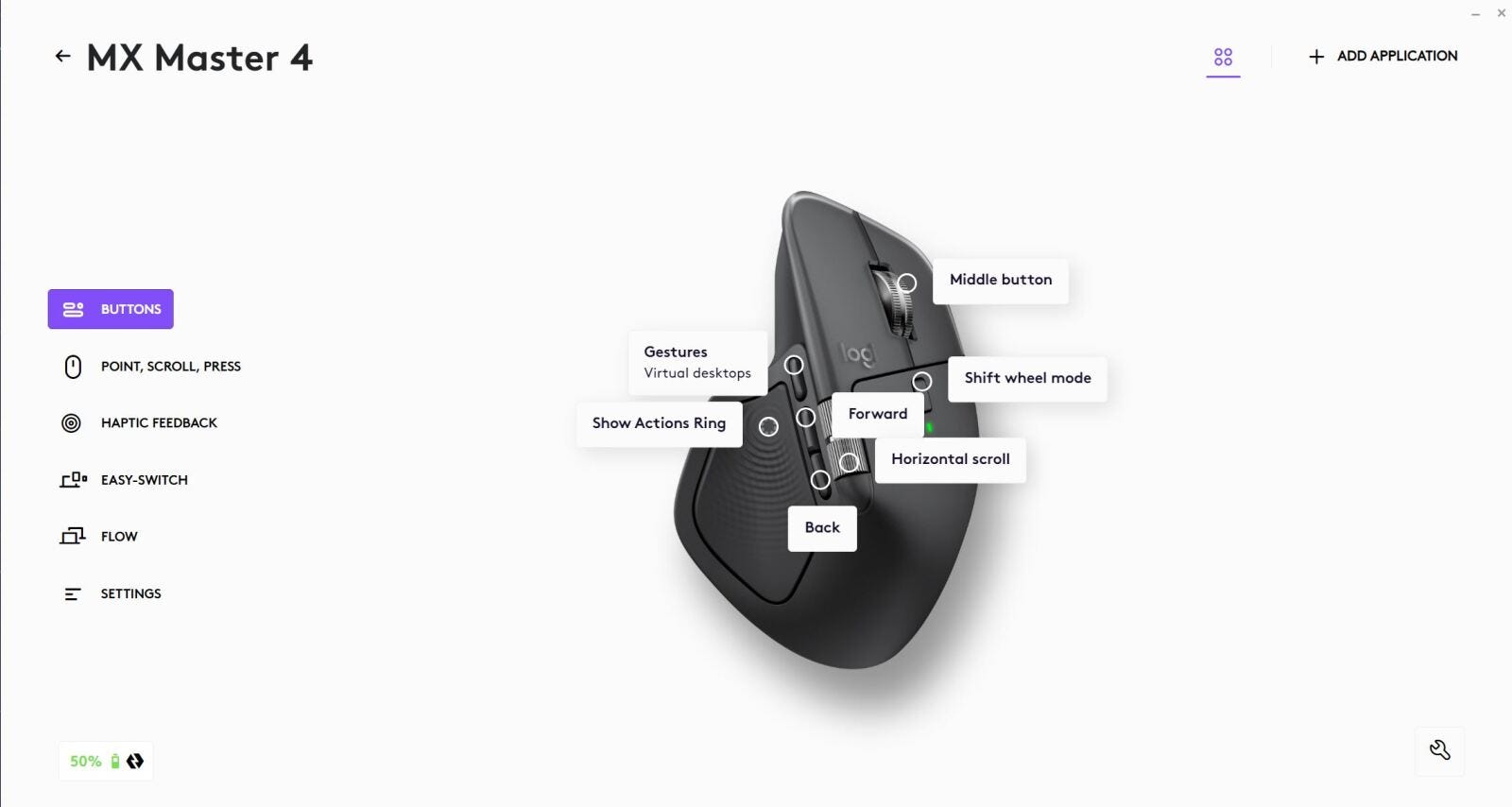
The hand-feel and battery life are enough to recommend the MX 4, but the real highlight is all the buttons it has! There are the primary left and right buttons, of course, and a scroll wheel that can also function as a button; the scroll wheel also has its own button right below it that allows users to scroll slowly with a ‘ratchet’ feel or very quickly in “free-floating” mode. You can hit that scroll mode button with your thumb: it’s very easy to reach. If the setting is enabled, the scroll wheel can also detect scrolling speed and adjust itself automatically… nice!
But wait, there’s more! In addition, there is a “side-scrolling” or horizontal scroll wheel on the left edge that you can also control with your thumb, along with backward / forward buttons below it, a dedicated “action” button next to them, and finally, the “haptic-enabled” big button where your thumb rests on the left side bottom. Pressing the Haptic button brings up the “Action Ring”: an overlay that lets users quickly access various functions.

You can use the mouse on its own without any extra software, but as you probably have guessed by now, to access all the additional functions, you’ll need to install the Logi Options+ app. For decades, Logitech has used a version of this type of app, none of which have been very good. I’m happy to say that the Logi Options+ app breaks that losing streak: it’s visually appealing and surprisingly easy to understand and configure.
The Logi Options + website offers numerous video tutorials on effectively using the MX Master 4, including creating “Smart Actions” (automating multiple tasks with a single click), customizing the Action Ring, and assigning app-specific functions to its buttons. I’ve been using this device for about a month now and have only scratched the surface of what it can do! For me, the game-changer — and the primary reason I decided to try the MX 4 — is the horizontal-scrolling thumbwheel. Why? I use a music notation app called Sibelius, which, besides standard menus, uses the dreaded Microsoft Ribbon to access its hundreds of functions. To access the various tabs and subgroups in Sibelius, plus to scroll through a music score, you have to scroll horizontally. Trying to do this with the Mighty Mouse was an exercise in frustration, as the various tabs would often jump around wildly on the screen. Thanks to the MX 4’s horizontal scrollwheel, that’s no longer a problem… whew!
That’s A Wrap
If you want a more detailed review of the MX Master 4, the helpful Canadians at RTings.com have one available here. And while I really enjoy using this mouse, not everyone will like its size or overabundance of features. Another important caveat is that it is only for right-handed people; if you’re a leftie, you’re out of luck. As I mentioned, I happily used the standard Apple mouse for many years, and if you’re a fan too, that’s great! But if you’ve ever wished for more than what the Apple mouse offers, this might be the solution for you.
Your friendly neighborhood Tech Daddy
Many of you have asked if there is a GoFundMe campaign to help us recover from the devastating loss of our home and possessions in the Altadena fire. The answer is yes! Our dear friend Jenn Melyan has created a GoFundMe for us; you can access it here.
Tech Daddy Substack Founding Members
Leigh Adams
Edgar Johnson
Harvey Rosenfield
Ken, it looks like the mouse is only right handed. I switch between hands when I use my mouse, without resetting the buttons. But this on looks like it’s only designed for a right handed thumb position. Your thoughts?